The Shortcut I Never Meant to Press
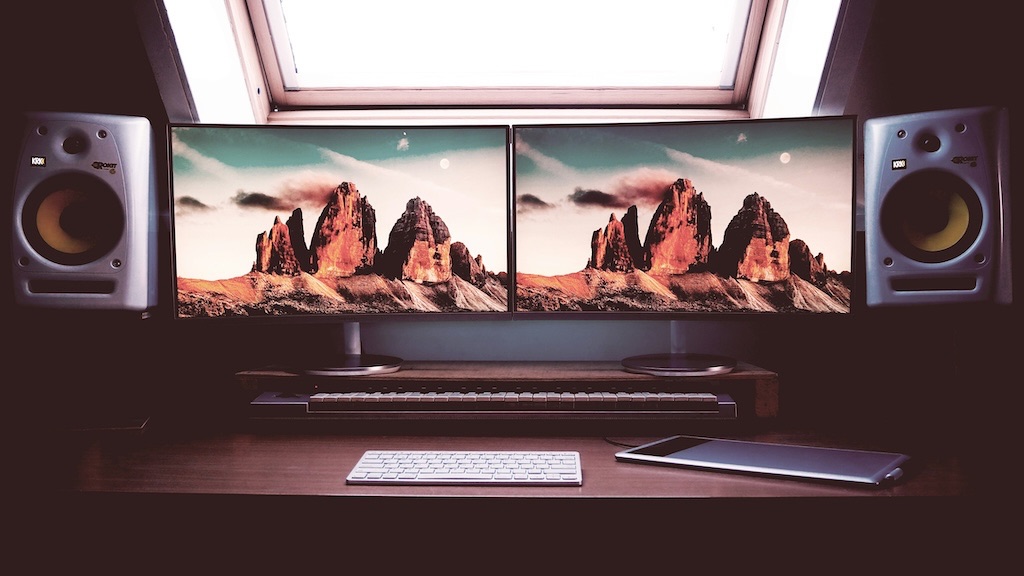
Photo by Tom Pijnappel on Unsplash
My most common display configuration is MacBook lid closed and two identical external displays running in “Extended Display” mode, very conveniently doubling my desktop workspace area. Every so often, mid-sentence, my screens would blink and suddenly my two displays were showing the same thing. Mirroring. I never asked for it (purposely at least). I’d be reaching for some shortcut, a stray keypress, and the whole carefully arranged two-screen world I work in would collapse into one. Then I’d spend the next thirty seconds in System Settings putting it back, having entirely lost whatever thought I’d been holding.
The culprit is commandF1. On a Mac, that combination toggles display mirroring, and it lives right next to combinations I reach for constantly. It is, in other words, a trap — a destructive action sitting one slip of the thumb away from everyday muscle memory, with no confirmation and no undo.1
A family of small guards
Regular readers will know I have form here. QuitProtect exists because commandQ sits next to commandW and I was tired of quitting apps when I only meant to close a tab. The pattern is always the same: a single careless keypress does something you didn’t intend, and macOS offers no way to simply say “please stop letting me do that.”
So MirrorGuard is a sibling to QuitProtect. It does exactly one thing: it watches for commandF1 and quietly throws it away before macOS can act on it. No prompt, no dialog, no configuration. The mirroring toggle simply never fires. Press the key on its own — just F1, your brightness-down key — and nothing changes; brightness works exactly as before. The guard only engages when command is held.
There are no kernel extensions, no remapping, no persistent change to your system. The app installs a HID-level event tap — the same kind of mechanism behind HyperCaps — which sees keyboard events before the window server gets to act on its hotkeys. When the offending combination comes through, the callback returns nothing, and the event ceases to exist. Quit the app and the guard is gone, completely. It changes nothing it doesn’t have to.
The key that wasn’t F1
Here is where the build got interesting, and where I’m reminded yet again that the details are the software.
I wrote the obvious version first. Watch for key-down events, check whether the key code is F1, check whether command is held, and if so, discard the event. The key code for F1 is 122. I knew that. I built it, granted it Accessibility, pressed commandF1 — and the screen mirrored anyway.
The tap was working. Accessibility was granted. The code was, as far as I could see, correct. But the mirroring fired regardless, as if my app weren’t there at all.
So I did the only sensible thing: I stopped guessing and made the app tell me the truth. I added a line that logged every event the tap received — type, key code, and whether command was down — and pressed the keys again while watching the log.
There it was. When I pressed F1, the event arriving at my tap didn’t have key code 122. It had key code 145.
The reason is that I keep my function keys in their default “media” mode, where the top row controls brightness and volume rather than acting as F1–F12. In that mode, the key in the F1 position isn’t F1 at all — it’s the brightness-down key, and it announces itself with a different code entirely. My matcher was sitting there patiently waiting for a key that, on my own keyboard, is never sent. I was trying to block the wrong key.
The fix was a single line: match the brightness-down code (145) as well as the plain F1 code (122), so the guard works whether your function keys are in media mode or standard-function-key mode. Both forms of the key, both covered. Press it again, and mirroring stayed exactly where it was. Silence. Bliss.
It’s a small thing — one number in one condition — but it’s the difference between an app that works and an app that confidently does nothing. You cannot reason your way to that detail from first principles; you have to ask the machine what it’s actually doing and then believe the answer, even when it contradicts what you were sure you knew.2
Why not Karabiner
The same question always comes up, and it’s a fair one. Karabiner-Elements can do this, and a great deal more besides. So can a Hammerspoon script. If you already run those tools and are comfortable in them, by all means add a rule and be done.
But that is, once again, a crane to hang a picture. To stop one accidental keypress I’d be installing a virtual HID driver, learning a configuration system, and keeping a general-purpose remapping engine running in the background — all to neutralise a single combination. MirrorGuard is the picture hook. It is a menu-bar app that does one thing, holds no configuration, and gets out of the way. If the only problem you have is the one it solves, it’s the right size for the job.3
Getting started
- Download MirrorGuard (free, open source)
- Launch it — grant Accessibility permission when prompted
- That’s it. commandF1 no longer mirrors your displays
The menu-bar icon shows a slash through a pair of displays while the guard is active, and you can toggle it off at any time if you actually want to mirror. Your brightness keys keep working throughout — the guard only ever touches the combination you didn’t mean to press.
One less trap
I’m increasingly convinced that a good chunk of what makes a computer pleasant to use is simply the absence of small betrayals — the keypresses that punish a momentary lapse, the actions with no confirmation and no way back. You can’t always remove them at the source, but you can stand a quiet little guard in front of them.
That’s all MirrorGuard is. One less trap.
MirrorGuard is free and open source on GitHub.
Footnotes
-
There is an undo, of course there is. I learned later that simply pressing commandF1 again stops the mirroring. ↩
-
I had to expand on this even further when I found my MacBook’s keyboard sends a different key-code again than the two I had trapped on the external keyboard I developed MirrorGuard on. ↩
-
Plus, and more honestly, I enjoy building these little tools. It really does just come down to that in the end. ↩