
What It Does
RainbowApple places a small transparent window precisely over the system Apple logo in the top-left corner of the menu bar. The window renders the Apple logo glyph filled with the original six-colour rainbow stripes.
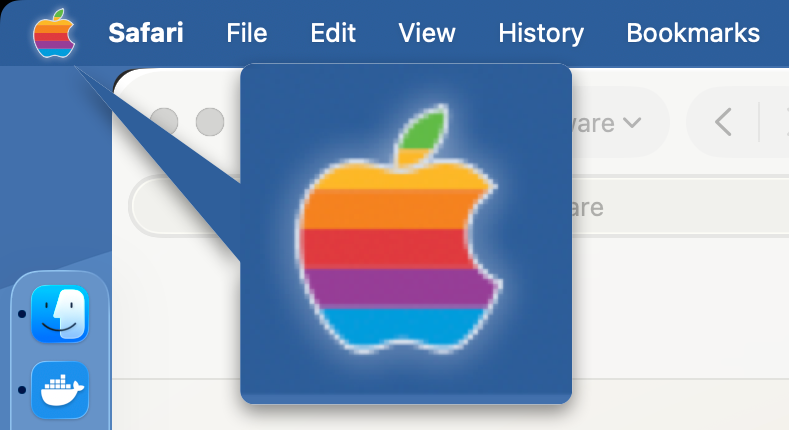
The overlay is click-through — clicking the Apple logo still opens the Apple menu as normal. No dock icon, minimal resource usage, and it follows you across all Spaces.
The Rainbow Stripes
| Stripe | Colour | Hex |
|---|---|---|
| 1 (top) | Green | #61BB46 |
| 2 | Yellow | #FDB827 |
| 3 | Orange | #F5821F |
| 4 | Red | #E03A3E |
| 5 | Purple | #963D97 |
| 6 (bottom) | Blue | #009DDC |
Each band is exactly a sixth of the apple’s own height, and the leaf carries the top band’s green in full — the arrangement of the 1977 original.
Features
- Appears on all Spaces — follows you as you switch
- Click-through — does not interfere with the Apple menu
- No dock icon
- Pixel-perfect alignment on every display — including notched MacBook Pros — via the macOS Accessibility API; re-syncs automatically when you plug or unplug a display, change resolution, switch Spaces, or change which app has focus
- Minimal resource usage
Installation
Two formats on every release — both signed and notarised, pick whichever suits:
- Installer (
.pkg) — recommended for first-time installs. Double-click to run; macOS Installer places the app in/Applicationswithout quarantine or App Translocation. - Download (
.zip) — unzip and dragRainbowApple.appto your Applications folder.
Or install it with Homebrew: brew install --cask perpetualbeta/jorvik/rainbowapple
Settings
Right-click the status bar icon and choose Settings… to configure:
- Accessibility — permission status with grant button
- Show icon in menu bar — hide the small Apple status icon (the one that opens this menu) while keeping the rainbow logo. Your choice persists across launches, including login auto-start. Shown only on macOS 14–15; on macOS 26 (Tahoe) and later, use System Settings → Menu Bar, which provides this natively.
- Menu bar icon pill — optional grey background behind the icon for stronger contrast on busy or wallpaper-tinted menu bars (off by default)
- Launch at Login — start automatically when you log in
If you’ve hidden the status icon and want it back, just re-open RainbowApple from your Applications folder — it reappears immediately.
Auto-updates are handled by Sparkle. Use the “Check for Updates…” menu item to check on demand; Sparkle’s prompt offers an “Automatically download and install updates in the future” checkbox the first time an update is available. RainbowApple checks for new versions automatically once a day in the background.
Building from Source
The build pipeline is driven by the shared release.mk Make include — a sibling checkout of jorvik-release at ../jorvik-release/ is required. The project Makefile is ~15 lines: it declares identity and includes the shared recipe.
- Install GNU Make 4+ if you don’t already have
gmake:brew install make - Clone both repos as siblings:
git clone https://github.com/PerpetualBeta/RainbowApple.gitandgit clone https://github.com/PerpetualBeta/jorvik-release.git - Quick compile check:
cd RainbowApple && gmake build - Full signed/notarised pipeline:
gmake release VERSION=1.0.0 BUILD_NUMBER=$(date +%Y%m%d%H%M%S)
Without SIGN_ID / INSTALLER_SIGN_ID / NOTARY_PROFILE, release.mk falls back to ad-hoc signing and skips notarisation — fine for parse-checking the recipe, not for shipping.
Requirements
macOS 14 (Sonoma) or later. Universal binary (Apple Silicon and Intel).