
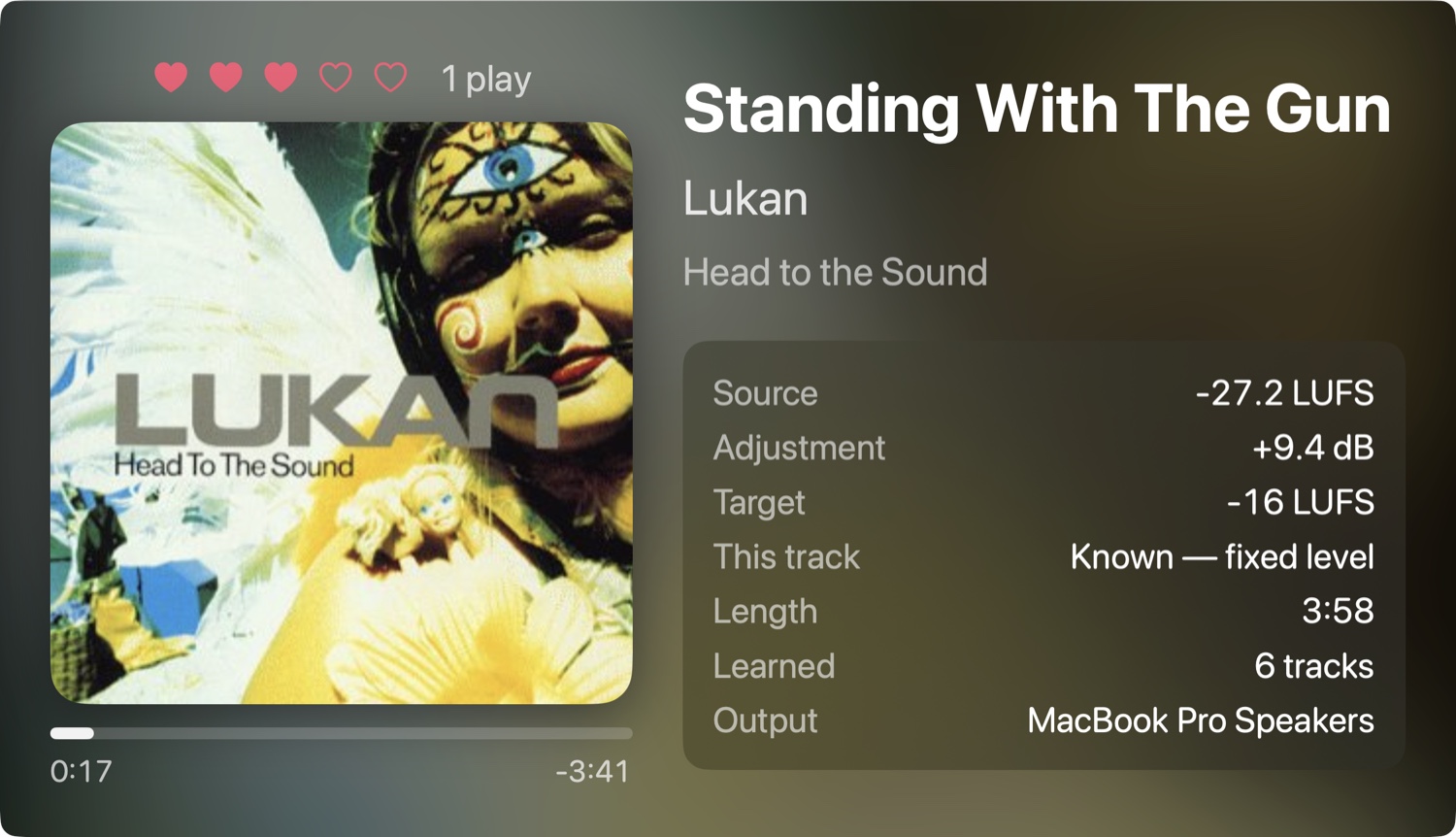
The Now Playing visualiser — live loudness readout, learned-track count, and the current track’s standing in your library.
What It Does
Set the volume once and stop reaching for it. Every app’s audio is mixed and sent to your output device; Ballast measures the loudness of that mix, applies a gentle gain to bring it to your comfort level, and plays the result back through your normal output. There’s no virtual audio driver and nothing to install into the system.
Loudness is measured with EBU R128 / ITU-R BS.1770 (LUFS) — the same standard streaming services and broadcasters normalise to — and steered toward your comfort level, −16 LUFS by default. Crucially, Ballast levels between tracks without touching the dynamics within a track: the quiet-to-loud swing that makes music breathe is left intact.
It Learns Your Music
Ballast watches for the track changes that Apple Music and Spotify broadcast. The first time it hears a track it measures the whole thing (once you’ve played at least 80% of it) and stores its loudness, keyed to the track’s identity. Every time after that, it recognises the track and applies one fixed, dynamics-preserving gain from the very first sample — no ramp, no guesswork — while quietly re-measuring in the background and nudging the value if it has drifted. Because that stored figure is a whole-track average that every play refines, a stray notification or system beep barely moves it — the more you play, the more of your library it knows, and the more accurate it keeps itself.
| Situation | What Ballast does |
|---|---|
| A known track (heard before) | Applies its learned level instantly; full dynamics intact |
| A new track | Levels it live (anchored to its loudest passage so nothing blasts) and learns it for next time |
| Loud vs quiet tracks | Land at the same comfortable loudness |
| Dynamics within a track | Preserved — Ballast does not compress the quiet-to-loud swing |
Switch output device — headphones, a speaker — and Ballast rebuilds itself around the new device automatically. Your learned library carries over untouched: a track’s loudness is measured from the source, before playback, so nothing is ever relearned per device.
How It Works
Ballast places a Core Audio process tap on the system audio mix — the modern, driver-free mechanism Apple provides for system audio (macOS 14.2+). It levels that mix to your comfort level and plays it back through your selected output device, which stays selected; there’s nothing to route.
Every track — one it already knows or a brand-new one — is measured on that same system-wide tap. A first-time measurement doesn’t need the music walled off on its own: because Ballast measures the loudness of the whole track, a stray notification or alert averages away to nothing, and every later play quietly re-checks and nudges the stored figure — so the library only grows more accurate the more you listen. Only one tap is ever active, so an app’s audio is never split or diverted.
Track changes come from the public Apple Music and Spotify notifications — reliable across gapless playback, and immune to a track’s own silent passages. Browser and YouTube audio, which have no track signal to key off, are levelled live and auto-relevel when the sound changes to a noticeably different level. Nothing persists in the system: the audio graph exists only while levelling is on, and quitting removes it entirely.
The Visualiser
A real-time visualiser of whatever’s playing. Because it’s driven by the same system-audio tap, it reacts to any app — Music, Spotify, a browser, a game. It’s a chromeless, resizable window with the system’s standard rounded corners: drag anywhere to move it, right-click for the menu, press the arrow keys to cycle styles, or f for full screen. It only renders while open, so there’s no cost when it’s closed. Six styles — five drawn in pure maths, plus the album-art Now Playing card pictured above:

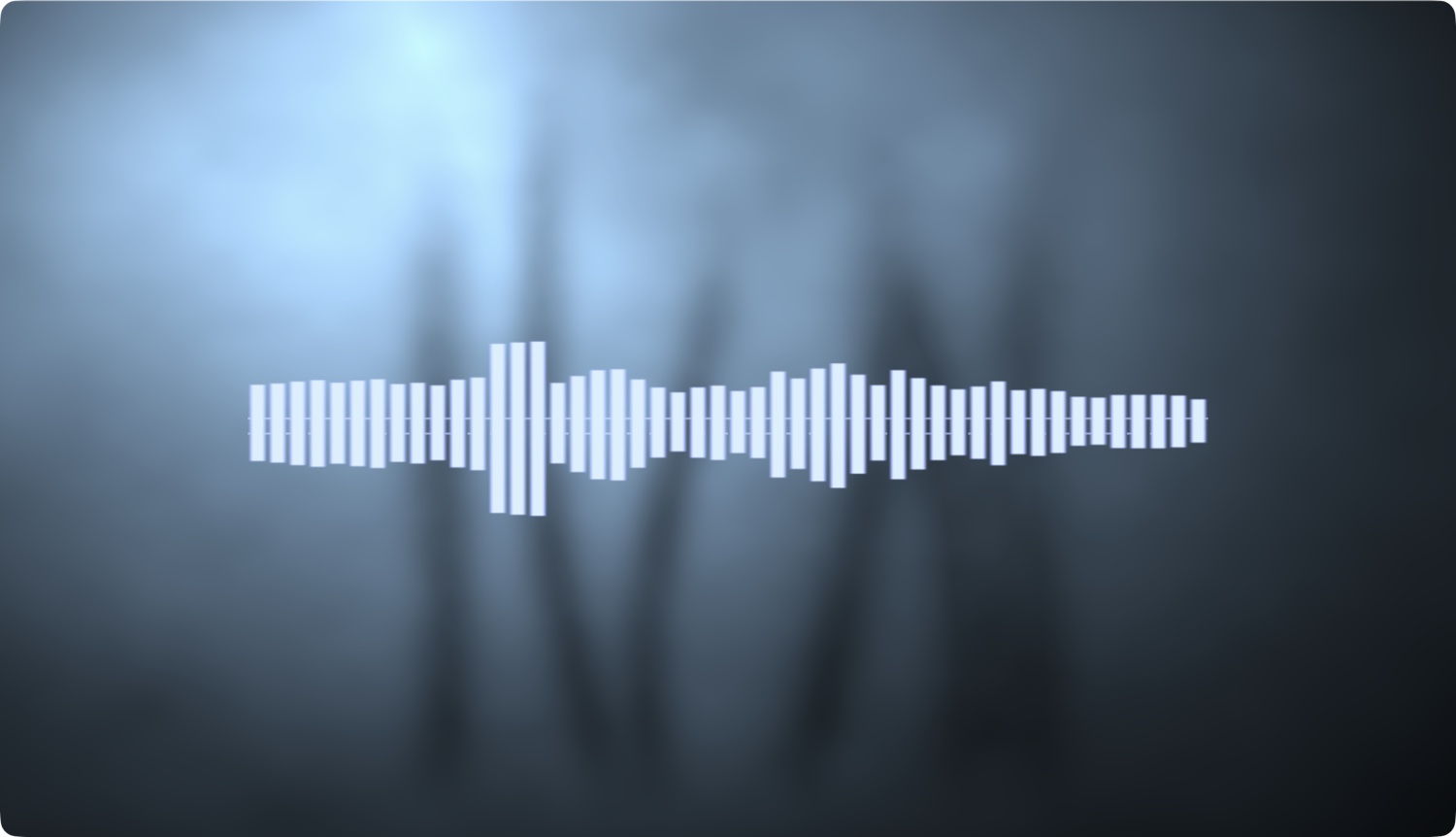
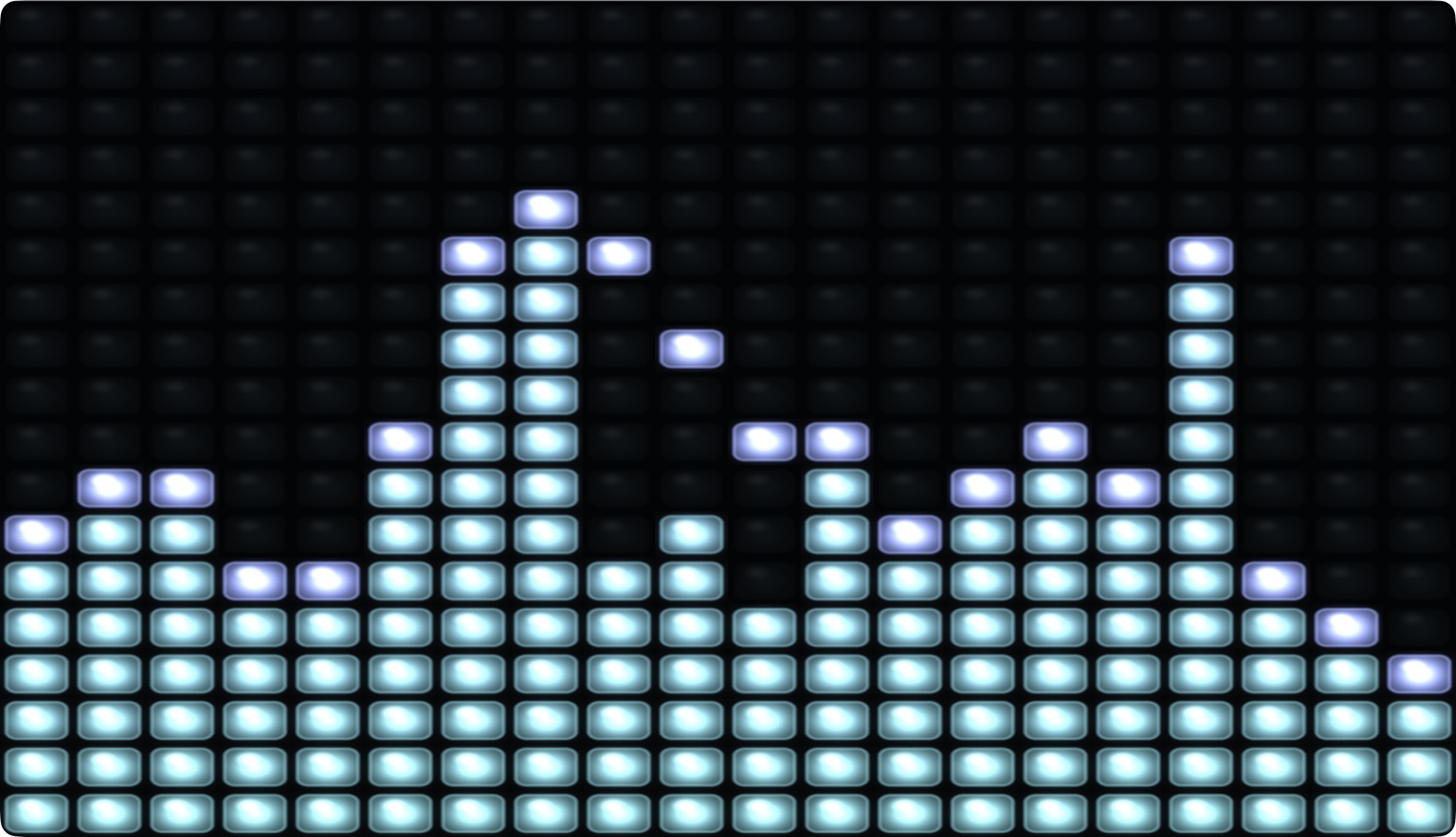
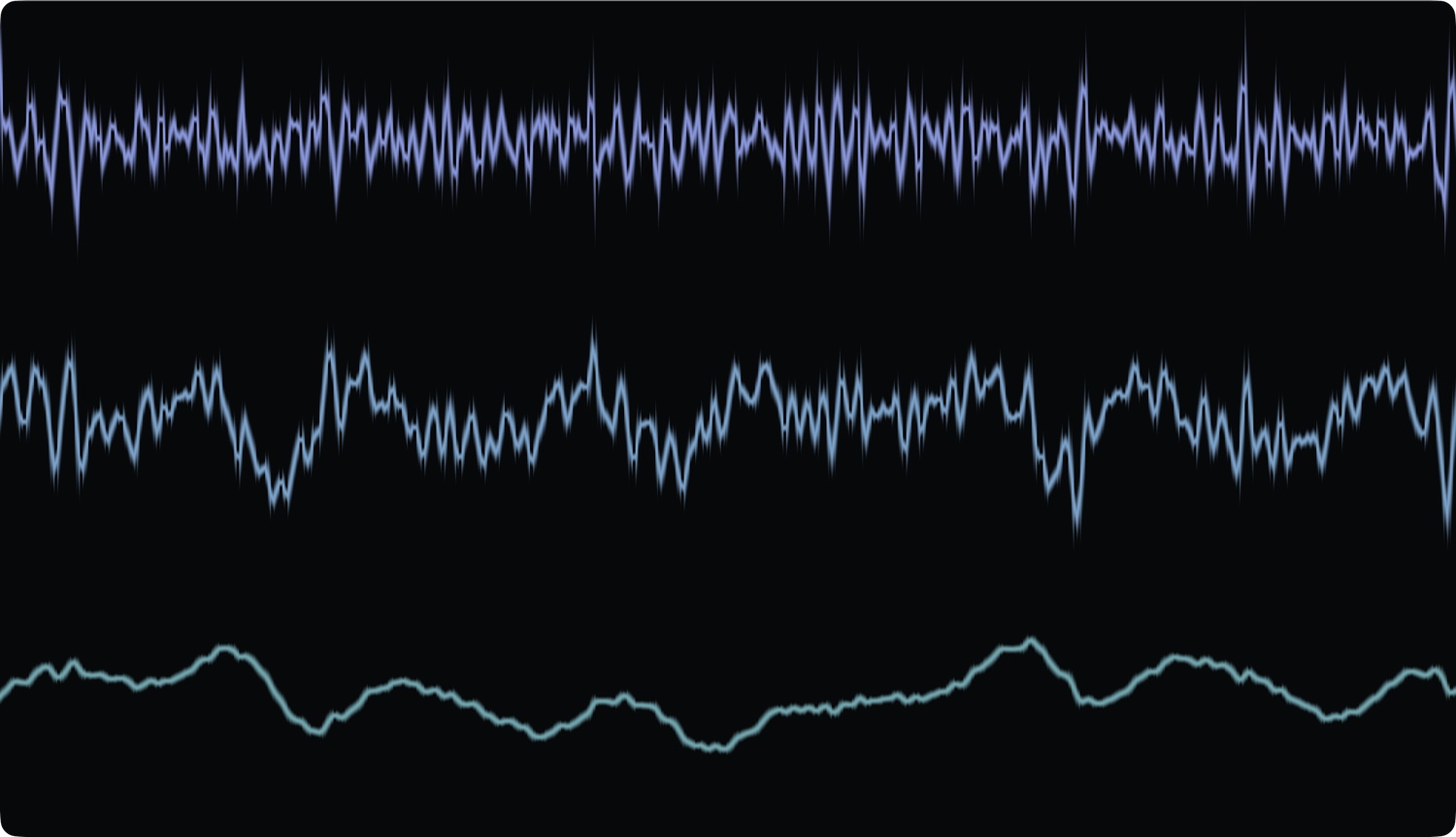
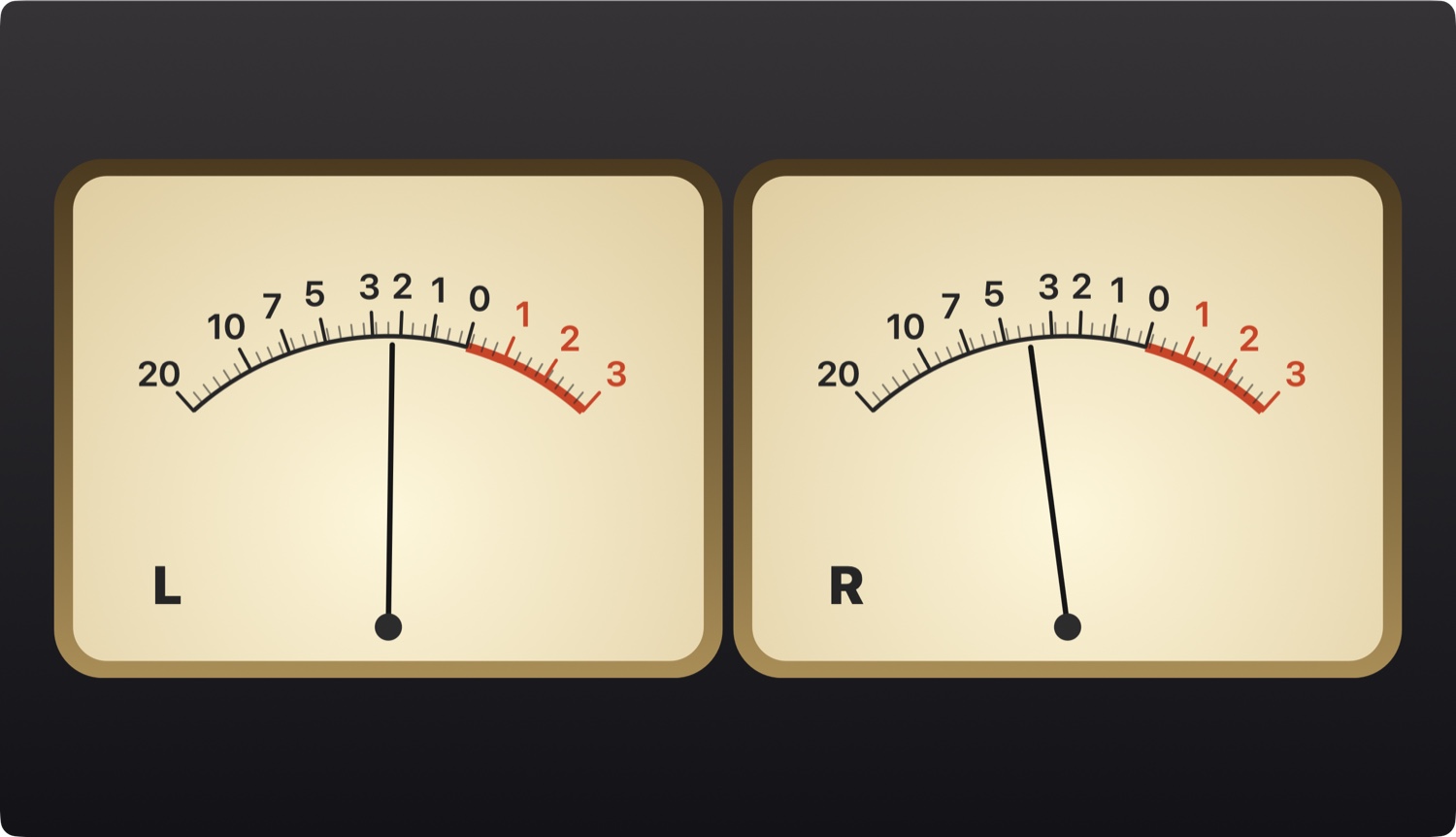
The generative styles are procedural Metal shaders (no image assets); the VU meters are vector-drawn with Core Graphics, and Now Playing is a SwiftUI view. Colour (Settings → Visualiser) can follow your desktop wallpaper — Match its dominant tone or take its Complement — re-deriving when you change wallpaper or Space. Keep window on top floats it above other windows.
Menu Bar
The waveform icon shows whether levelling is on. Click it for:
- Level Loudness — turn levelling on or off.
- Re-level Now — force a re-measure of the current audio (browser/YouTube sources auto-relevel on their own; this is the manual override).
- Visualiser… — open the real-time music visualiser.
- Check for Updates…, Settings…, About.
The current track’s title can optionally be shown to the right of the icon (Settings → Menu Bar) — a lightweight now-playing display in its own right.
Settings
- Comfort level — a simple Quieter ↔ Louder slider (the loudness target; −16 LUFS by default).
- Maximum adjustment — caps how far Ballast will push any track (±12 dB by default).
- Do Not Level — exclude specific apps from levelling: games, DAWs, or video calls with their own levels. Their audio is left completely untouched while everything else is still levelled — add a running app from the menu, or browse for one that isn’t running.
- Now — the live output device, this track’s loudness, and the current adjustment.
- Library — how many tracks Ballast has learned, with two resets: Reset Play Counts & Love clears the listening stats but keeps every learned level, and Reset Learned Library forgets everything and relearns from scratch.
- Visualiser — choose the style, optionally tint it from your desktop wallpaper, and keep the window on top.
- Show current track title — display the playing track’s title beside the menu-bar icon, trimmed at a word boundary when long, hidden while paused or stopped. Off by default.
- Permission — audio-capture status, with a button to grant it or open System Settings.
- Show icon in menu bar (macOS 14–15 only), an optional background pill, and Launch at Login.
Auto-updates are handled by Sparkle — check on demand from the menu, or let Ballast check quietly once a day.
Permissions & Privacy
- Audio capture (required) — reading the system audio mix goes through macOS’s audio-capture privacy gate (its own category, separate from the microphone). A short welcome panel explains this on first launch; you’re prompted the first time you turn levelling on.
- Automation (optional) — the first time levelling starts with Apple Music or Spotify playing, macOS asks to let Ballast control that app. It’s used only to read the currently playing track at start-up, so a known track’s level applies immediately. Decline it and Ballast just waits for the next track change.
Audio is measured and processed entirely on-device, in real time. Ballast never records, stores, or transmits any audio, and has no telemetry. The only thing written to disk is your loudness library (track loudness values and titles) at ~/Library/Application Support/Ballast/library.json. The one thing it ever fetches from the network is album cover art for the visualiser’s Now Playing card — and only when a streaming track supplies none, looked up by title and artist from a public catalogue. Never anything to do with the audio.
Installation
Two formats on every release — both signed and notarised, pick whichever suits:
- Installer (
.pkg) — recommended for first-time installs. Double-click to run; macOS Installer placesBallast.appin/Applicationswithout quarantine or App Translocation. - Download (
.zip) — unzip and dragBallast.appto your Applications folder.
Or install it with Homebrew: brew install --cask perpetualbeta/jorvik/ballast
Launch Ballast and grant audio-capture permission the first time you turn levelling on.
Building from Source
Ballast is a Swift Package — no Xcode project required.
- Clone the repo:
git clone https://github.com/PerpetualBeta/Ballast.git - Build:
gmake build(requires GNU Make 4.x —brew install make→gmake) - Run:
open .build/Ballast.app
Signed, notarised releases are produced through the shared jorvik-release pipeline.
Requirements
macOS 15 (Sequoia) or later. Universal binary (Apple Silicon and Intel). Ballast uses Core Audio process taps and the Synchronization framework, so there’s no virtual audio driver and nothing to install into the system.